Divi WordPress Theme
Showing posts with label Wiigo. Show all posts

8/22/10

Draw and write on your desktop screen.

If you are looking for a program to draw or write on your desktop screen then try the Microsoft ZoomIt. With this excellent Windows utility you can also magnify any area of the desktop using either the mouse wheel or the arrow keys.
ZoomIt works with hotkeys like :

Ctrl+1 (zoom the screen)
  • up arrow zoom-in
  • down arrow zoom-out
Ctrl+2 (change the mouse into a screen pen)
  • r for red ink
  • b for blue
  • g for green
  • y for yellow
  • o for orange
  • p for pink
  • e to erase
  • t type text
  • Left Ctrl+up arrow increase pen width
  • Left Ctrl+down arrow reduce pen width
  • Shift draws a line
  • Ctrl draws rectangle
  • Tab draws ellipse
  • Shift+Ctrl draws arrow
  • Ctrl+C copy screen
  • Ctrl+S save screen to image file
ZoomIt works on all versions of Windows, it's a great and easy tool.
Try it with the interactive whiteboard Wiigo of Gdo Multimedia or just use it as presenation pointer instead of a laser pointer.


2/20/10

Wiigo - Remotely control your computer.

Reply to the post 'Remotely control your PC with Wiigo' to inform you for the new improved version of the program 'Wiigo' of Gdo Multimedia.

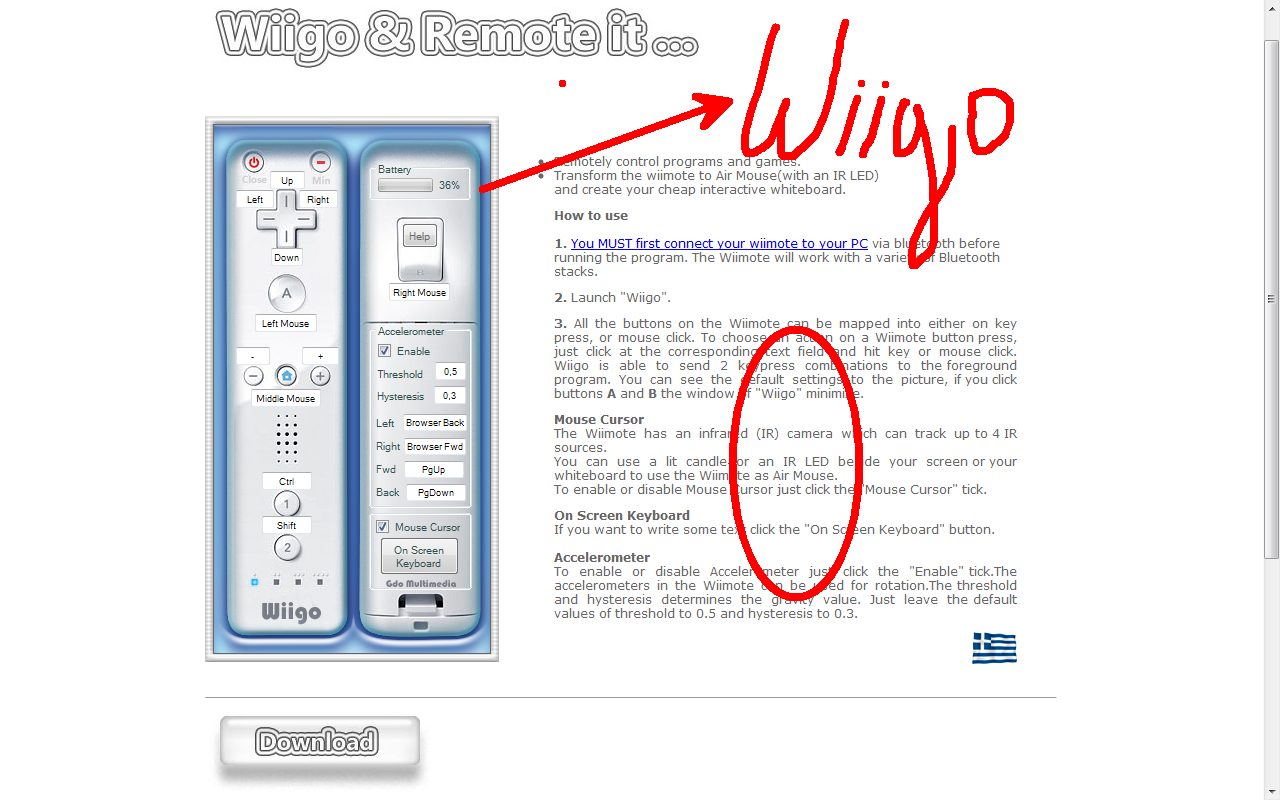
Now you can easily transform the Wiimote to Air Mouse(with an IR LED) to create a very cheap interactive whiteboard, and to control your computer remotely(up to 10 meters).

The initial configuration shown in Fig.
If you click buttons A and B of the Wiimote the window of "Wiigo" minimize.

Click 'On Screen Keyboard' If you want to write some text.
For more information see help.

11/4/09

Remotely control your PC with Wiigo.

Reply to the post 'Cheap interactive whiteboard' to inform you about the Wiigo from Gdo Multimedia, a new freeware program. With the Wiigo you can remotely control programs and games . Wiigo it can be used as remotely mouse with a single near-infrared source (like a lit candle or infrared LED).
Also Wiigo can transform any flat screen display into an interactive whiteboard.
Steps
1. Buy a Nintendo Wiimote.
2. Follow the tutorial how to connect your Wiimote to your PC.
3. Download and install the Wiigo.

If you want to use the Wiigo in "interactive whiteboard mode", you will need also an infrared pen. You can build the pen yourself or get a pre-made one.
See the Help for details.

You can remotely control :
1. PowerPoint presentations.
2. Mapping software:
Microsoft Virtual Earth, Google Earth
3. Physics simulation software:
Phun
4. Virtual Tourism:
Photosynth
5. Media Browsing:
CoolIris
6. Painting progams:
Alias Sketchbook Pro
7. Flash games:
http://www.flash-game.net/
8. Other PC games....and what ever you thing!!!

Requirements
- Windows operating system.
- Microsoft .NET 3.5 (or later).